How to use The Money Map System
A tour of every screen, in the order most people set it up. Plan on 15 minutes for your first pass. Everything saves as you go.
Sign in with a code, no password
Your access is tied to the email you used at checkout.
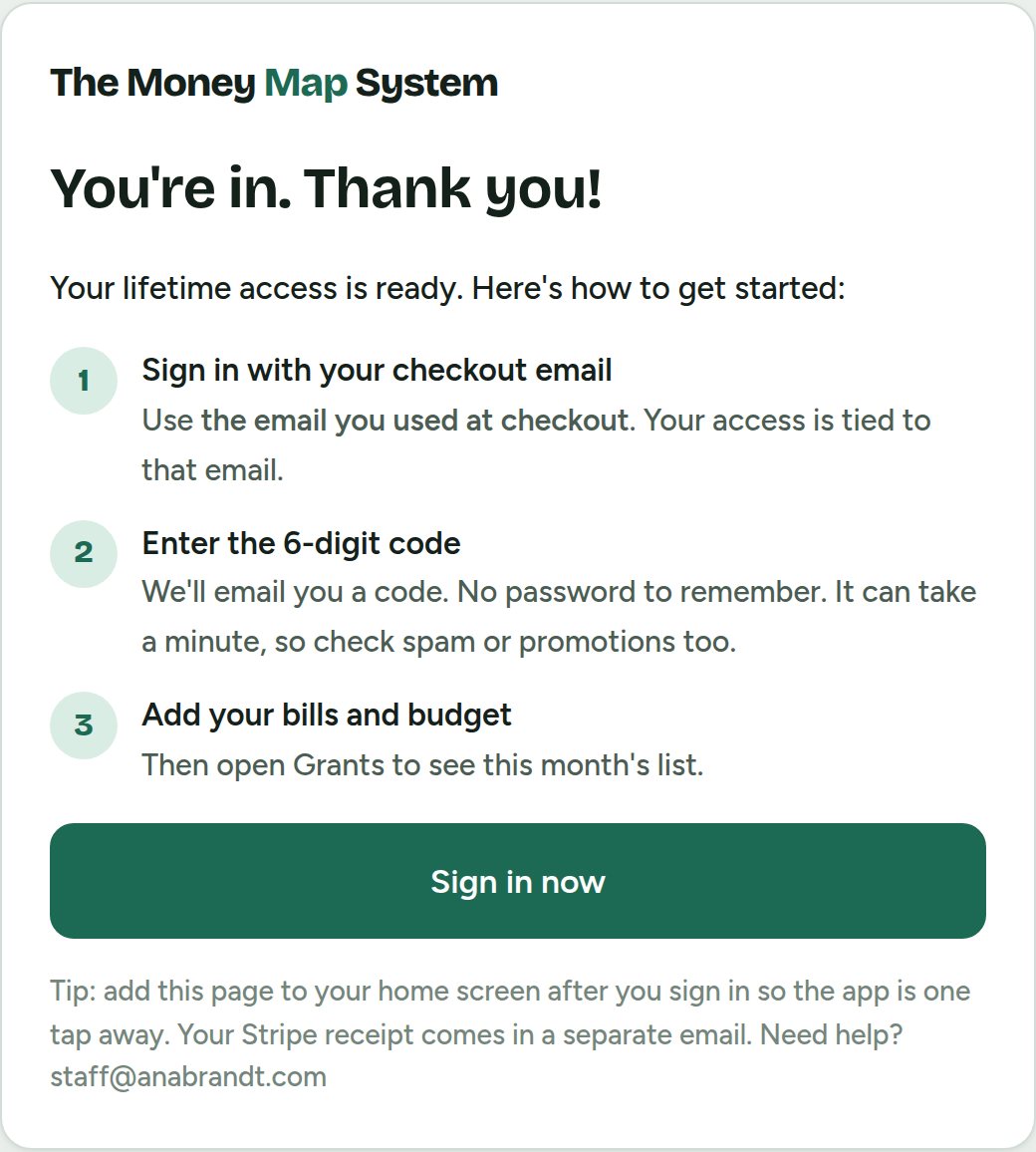
- After you buy, you land on the thank-you page. Tap Sign in now.
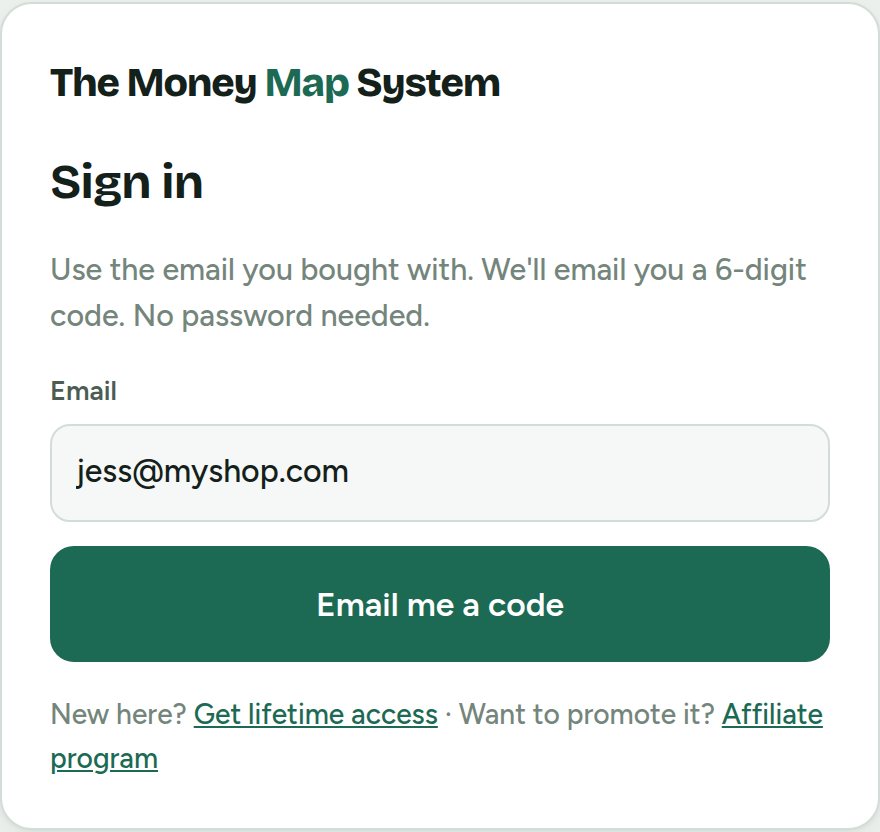
- Enter the same email you paid with and tap Email me a code.
- Open the email, copy the 6-digit code, and type it in.
- Next time, go to themoneymapsystem.com/login.html and do the same.
Your home screen
The Overview tab answers four questions at a glance: how much debt is left, what's left over this month, what to save for taxes, and how much grant money you're going after.
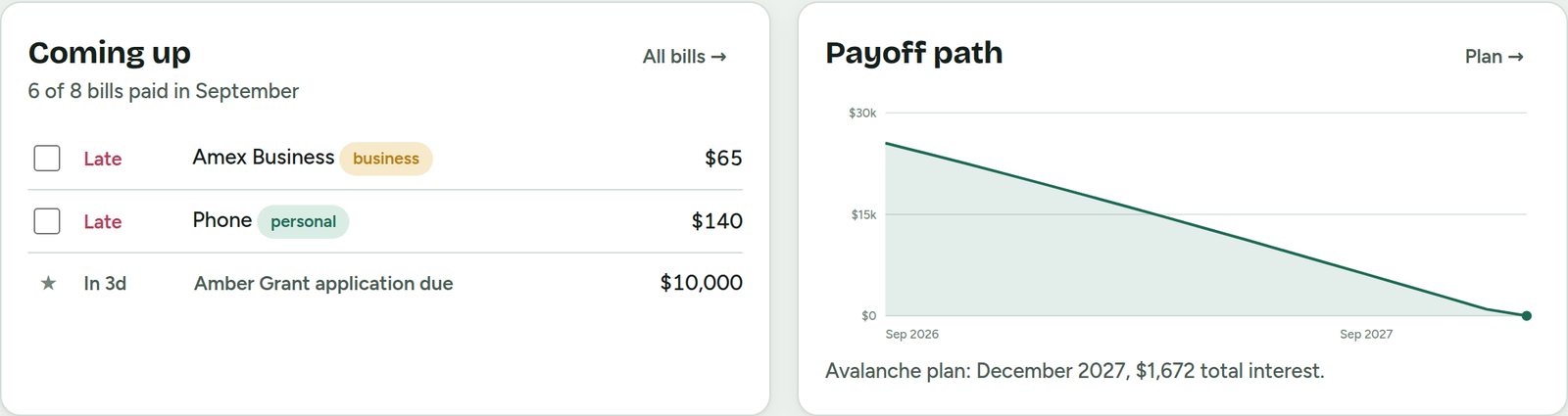
- Coming up lists bills that are still due, grant deadlines and the next tax date. Tick a bill's box when you pay it.
- Payoff path charts your debt dropping to zero.
- The four tabs at the top take you to Overview, Bills & Payoff, Money In & Out and Grants.

Add your bills and debts
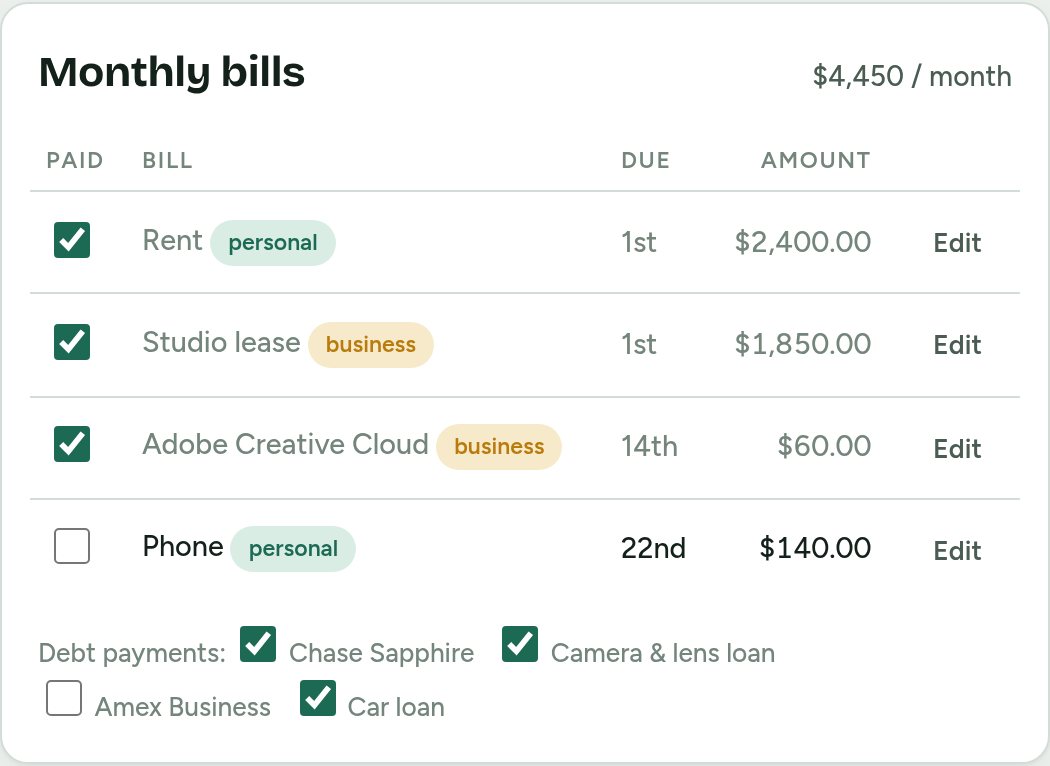
Go to Bills & Payoff. There are two kinds of things to add.
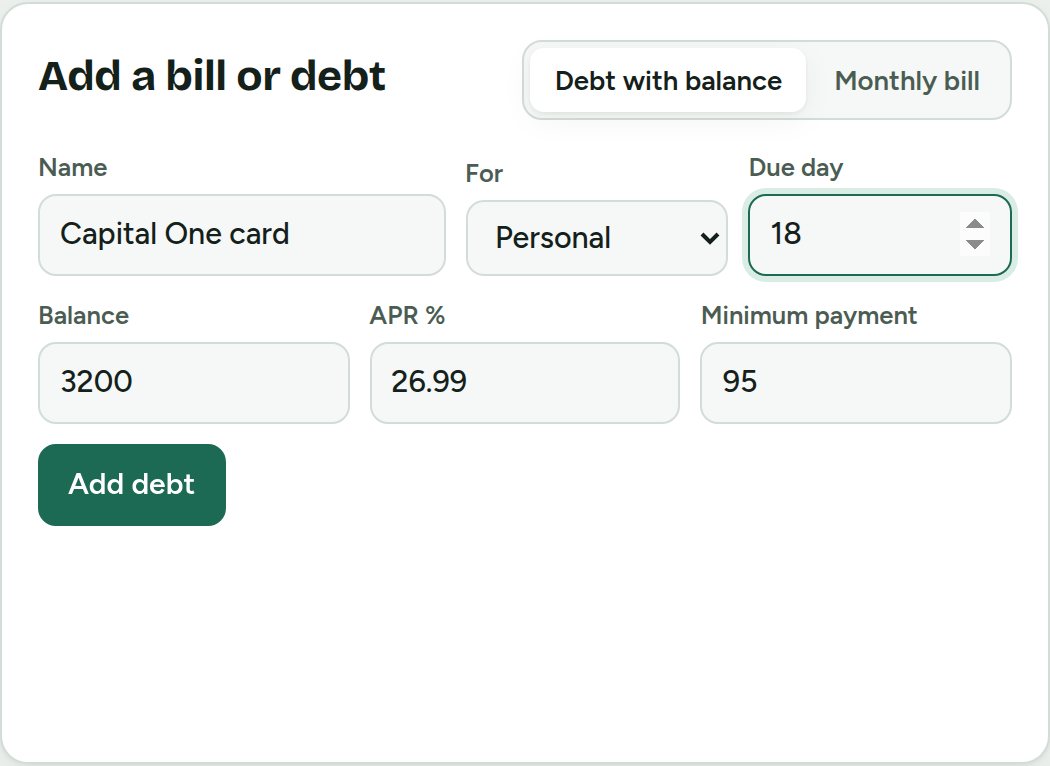
- Debt with balance: credit cards, car loans, business loans. Enter the balance, interest rate (APR) and minimum payment. You'll find all three on your statement.
- Monthly bill: rent, phone, software, insurance. Just the amount.
- Choose Personal or Business and the day it's due.
- Tap Edit on any row to change it later.
Pick your payoff plan
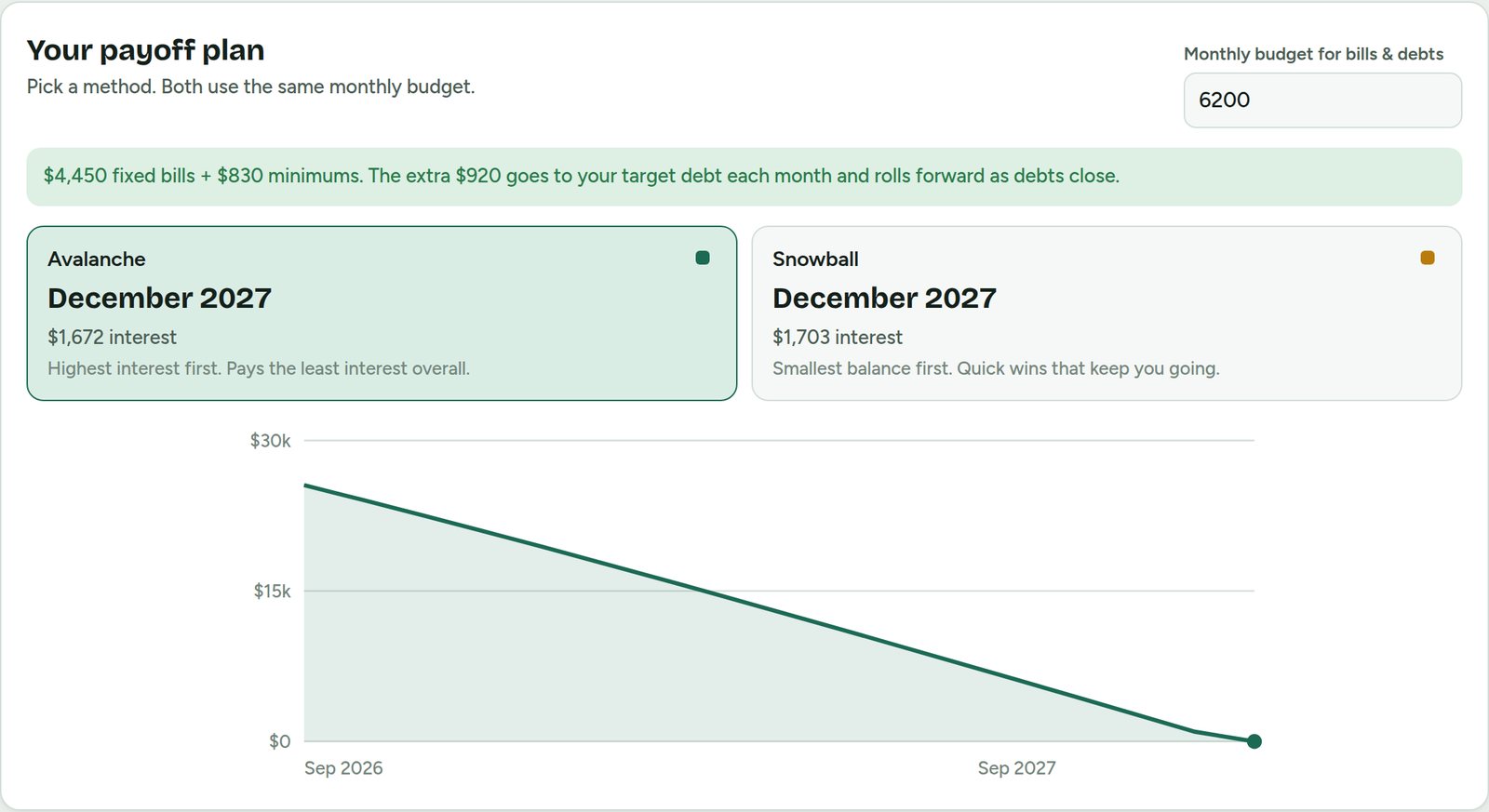
Tell it how much you can put toward bills and debts each month. It does the math.
- Enter your Monthly budget for bills & debts.
- Compare the two plans:
Avalanche pays the highest interest first and costs the least.
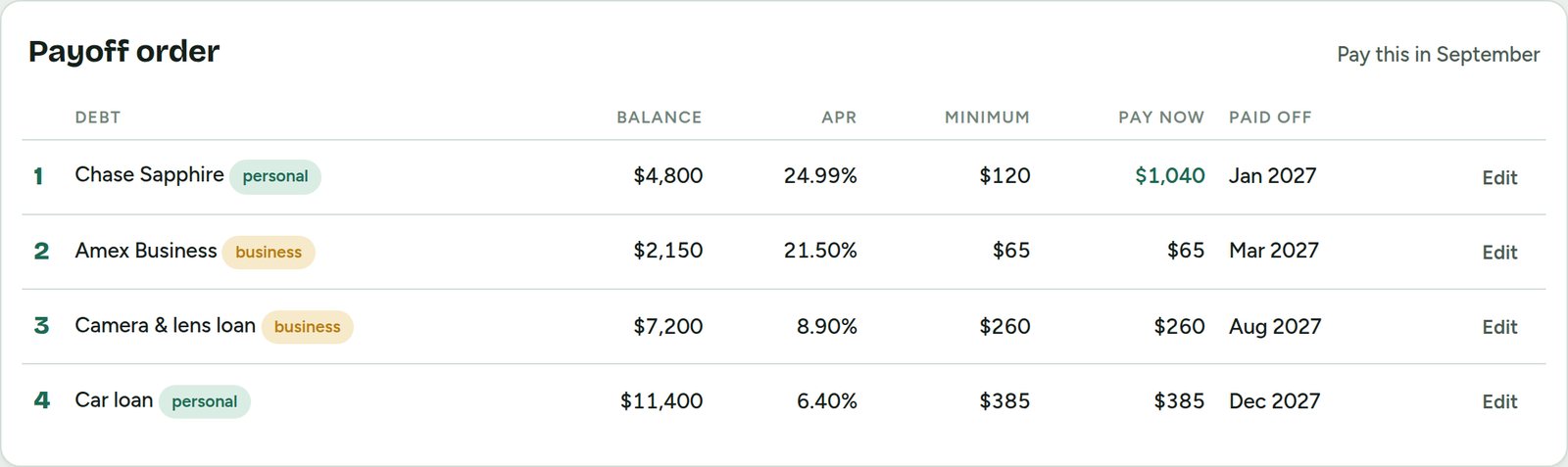
Snowball pays the smallest balance first for quick wins. - Tap the one you want. Payoff order shows exactly what to pay on each debt this month. The bold green amount is where your extra money goes.
- When a debt is paid off, its payment rolls into the next one automatically.
Track money in and money out
Go to Money In & Out. Log what comes in and what goes out, personal or business.
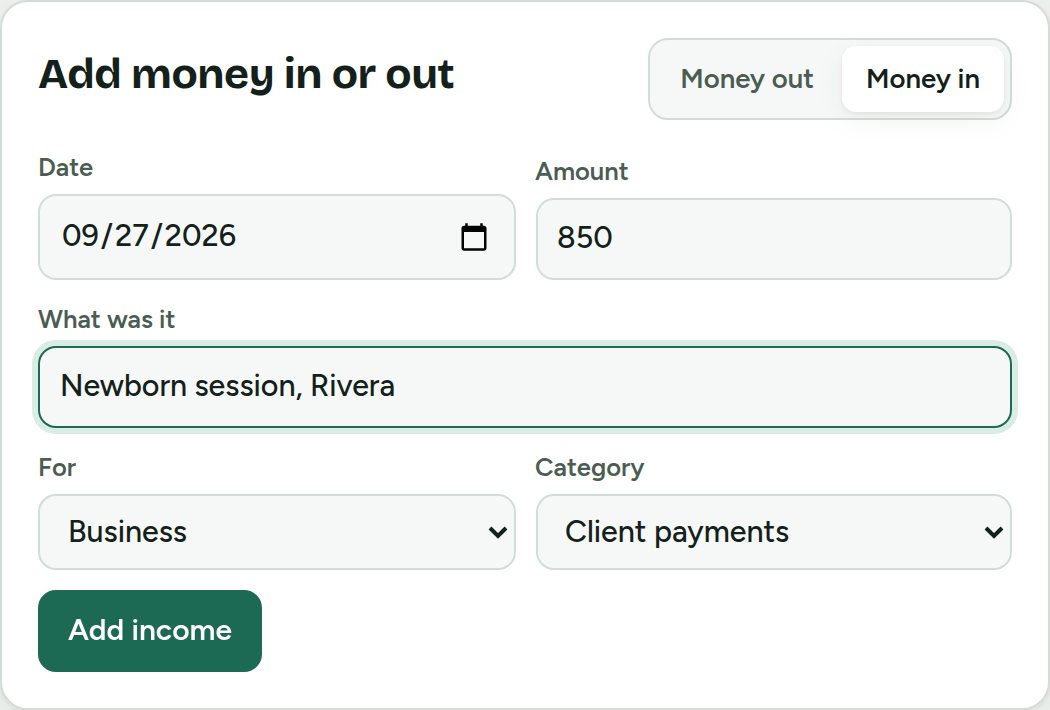
- Pick Money in (a paycheck or client payment) or Money out (an expense).
- Enter the amount and what it was, choose Personal or Business, then pick a category.
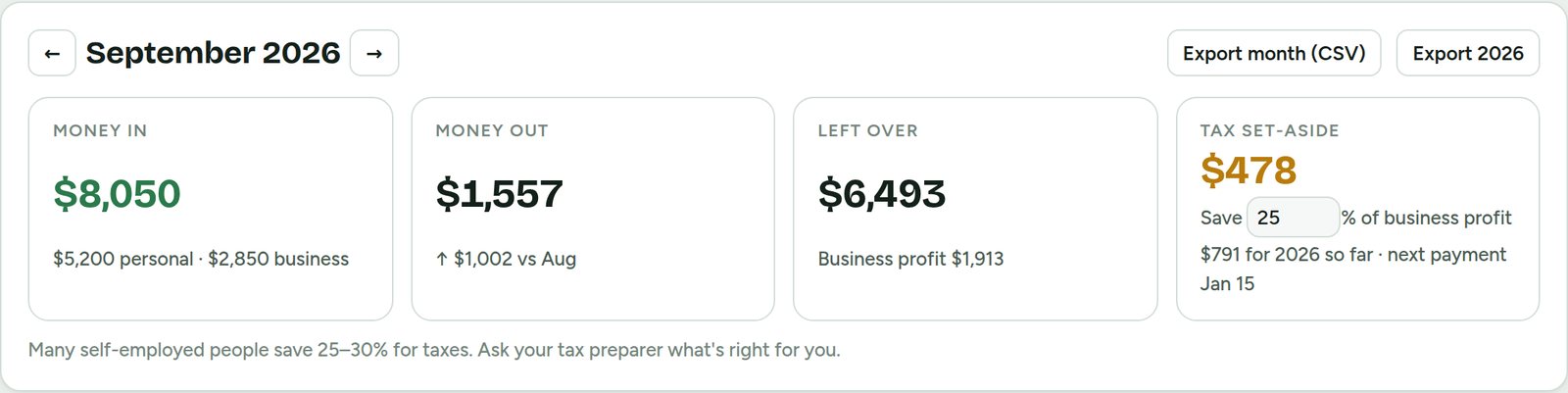
- The tiles show money in, money out, what's left over and your business profit.
- Tax set-aside tells you what to save from business profit. Change the percentage to match what your tax preparer recommends.
- Use the arrows to flip between months, and Export to download a spreadsheet for taxes.
Import a bank statement (optional)
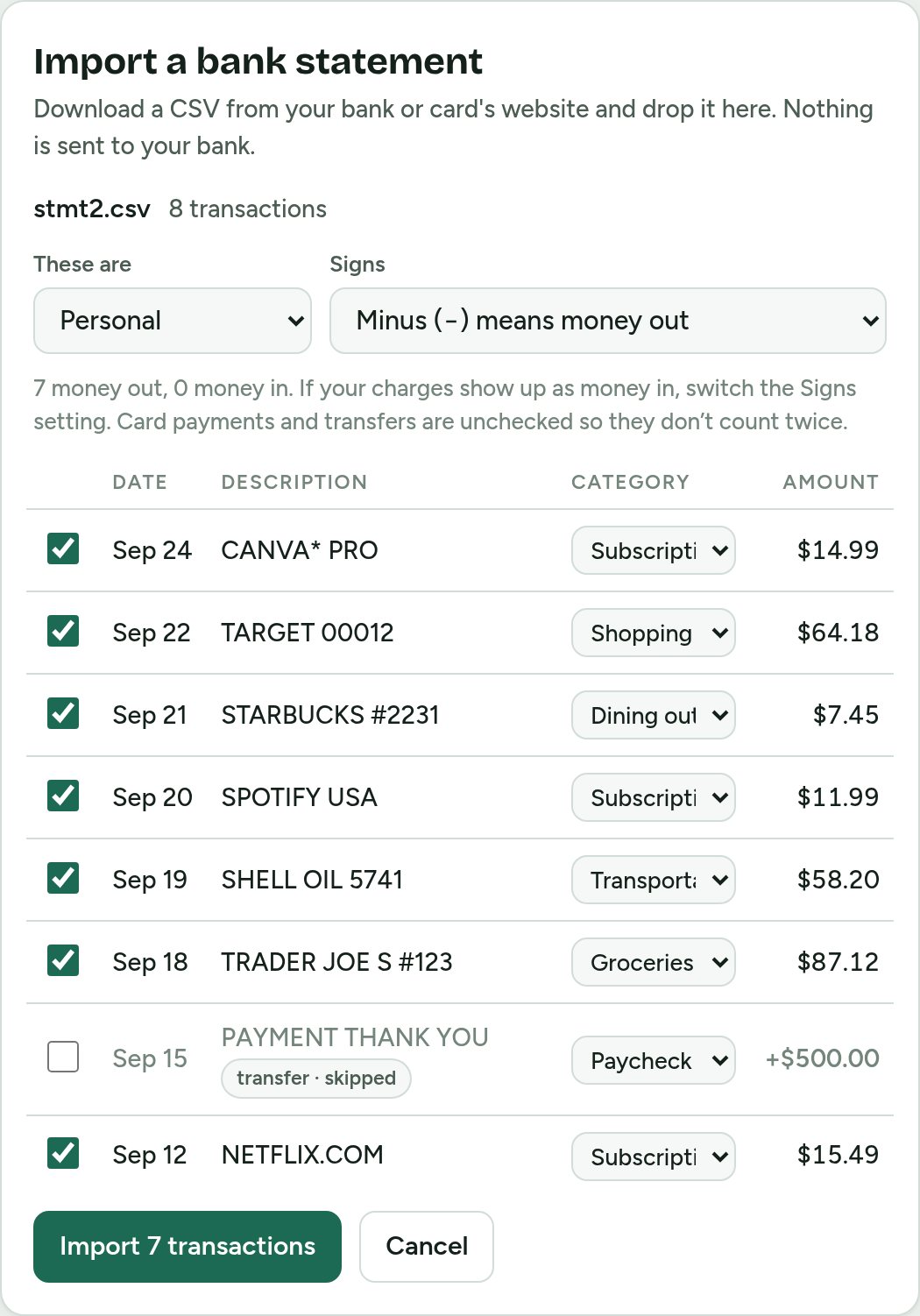
Skip the typing. We never ask for your bank login.
- On your bank or card's website, find Download transactions and choose CSV.
- Drop the file into Import a bank statement.
- Choose whether the charges are Personal or Business, then check the categories it guessed.
- If charges show up as money in, switch the Signs setting. Most credit cards need this.
- Tap Import. Card payments and transfers are skipped so nothing counts twice, and anything already imported is skipped too.
Set spending limits and catch subscriptions
Below the entries you'll find two helpers.
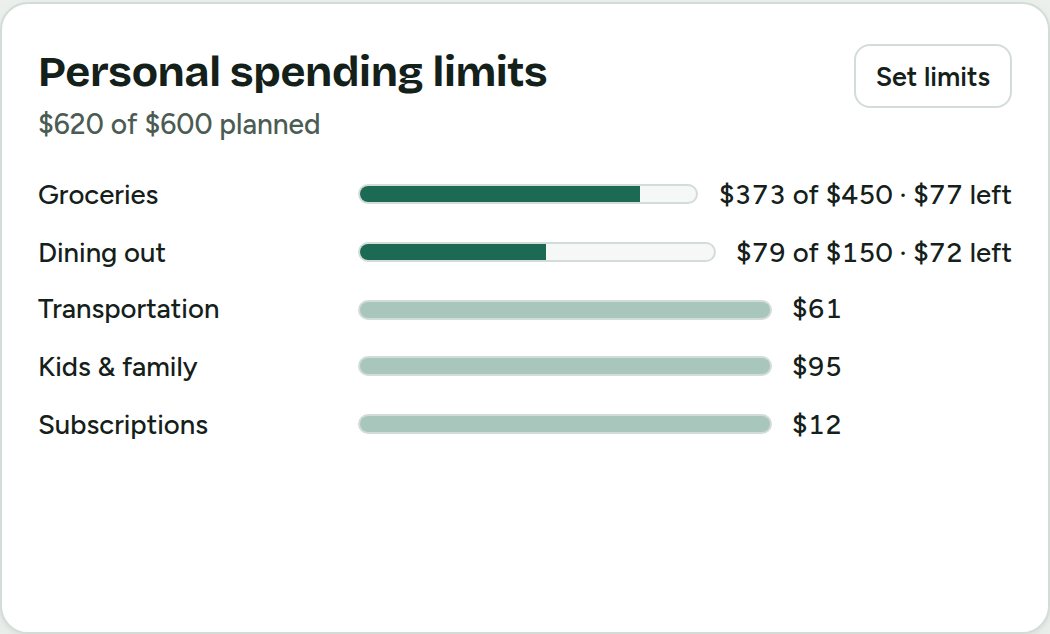
- Pick Personal or Business above the entries list, then tap Set limits. Give each category a monthly limit, like groceries $450 or ads $300.
- Each bar fills as you spend and turns red if you go over.
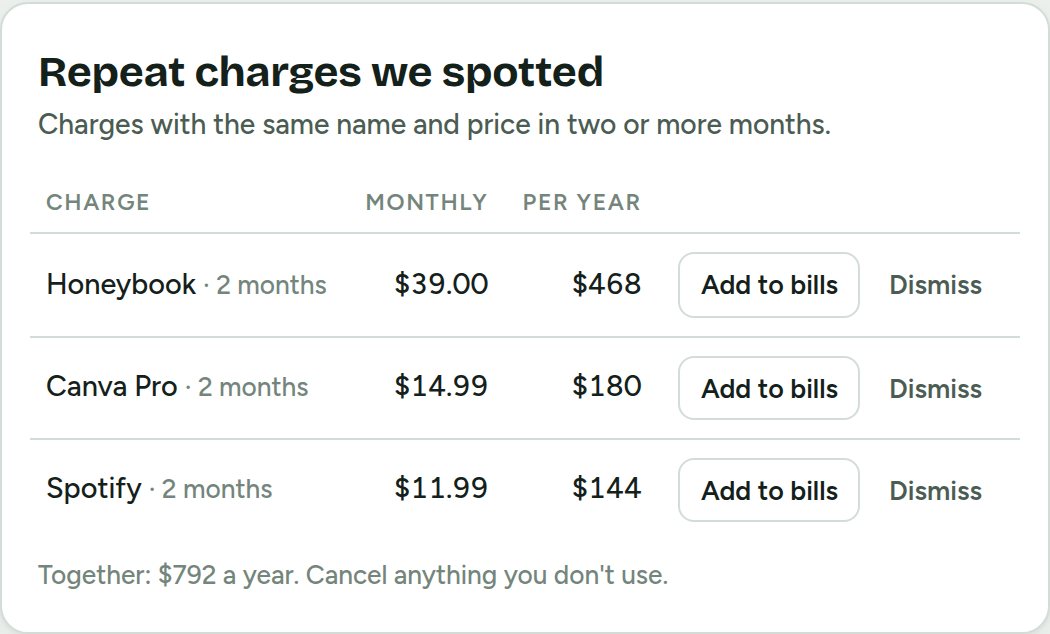
- Repeat charges we spotted finds the same charge at the same price in different months. Tap Add to bills to track it, or Dismiss. The yearly total shows what they really cost you.
This month's grant list
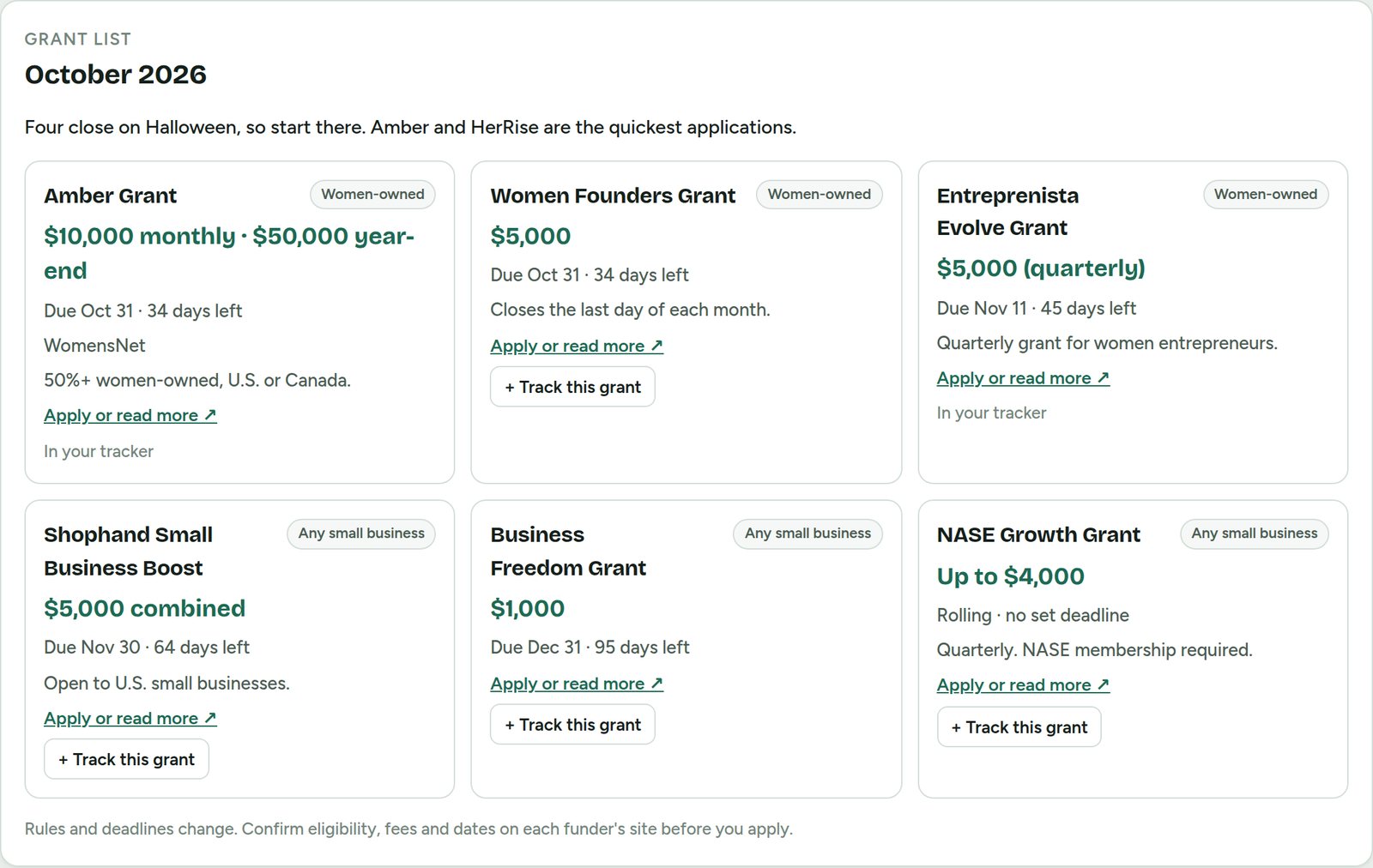
Open Grants. The first screen is this month's hand-picked list: amount, deadline, and who can apply.
- Read the note at the top. It tells you where to start.
- Tap Apply or read more to open the funder's page and check that you qualify.
- Tap + Track this grant to add it to your tracker, deadline included.
- Use Past lists to look back at earlier months.
Apply with the Grant Coach
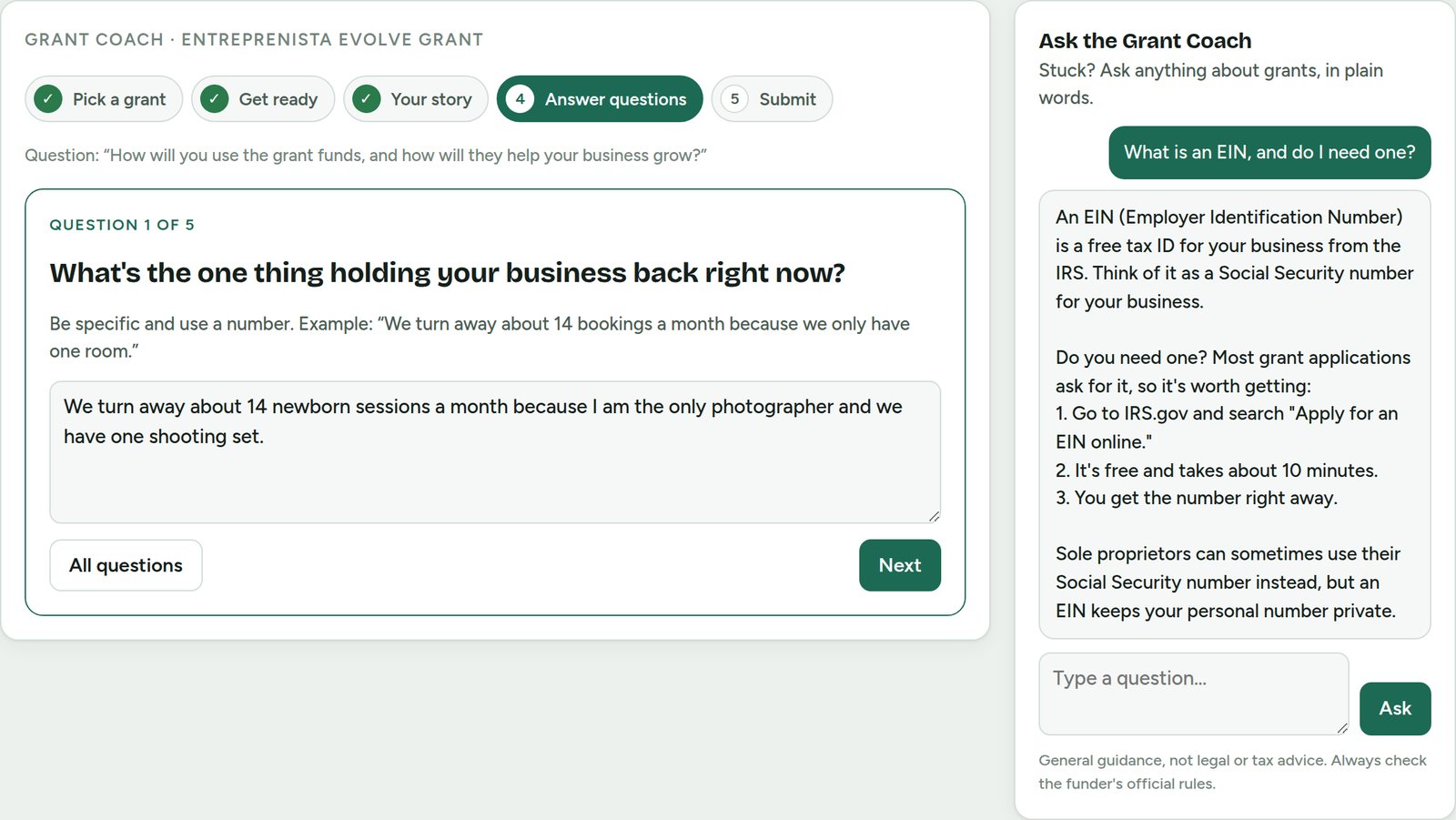
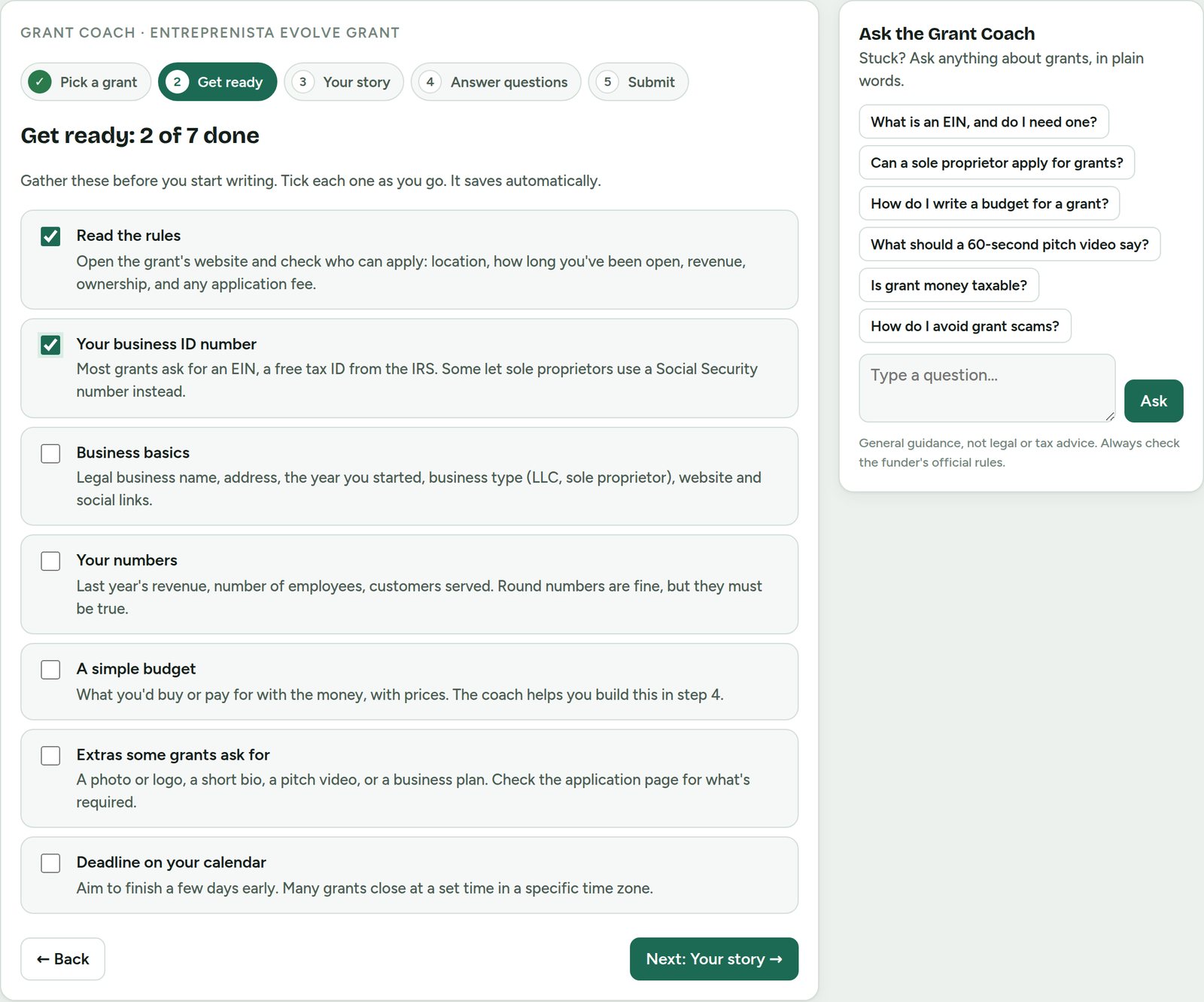
Never applied for a grant before? Open Grants → Grant Coach. It walks you through five steps.
- Pick a grant. Choose one you're tracking, or add it with its name, amount and deadline.
- Get ready. A checklist of what to gather first: the rules, your EIN, business basics, your numbers and a simple budget.
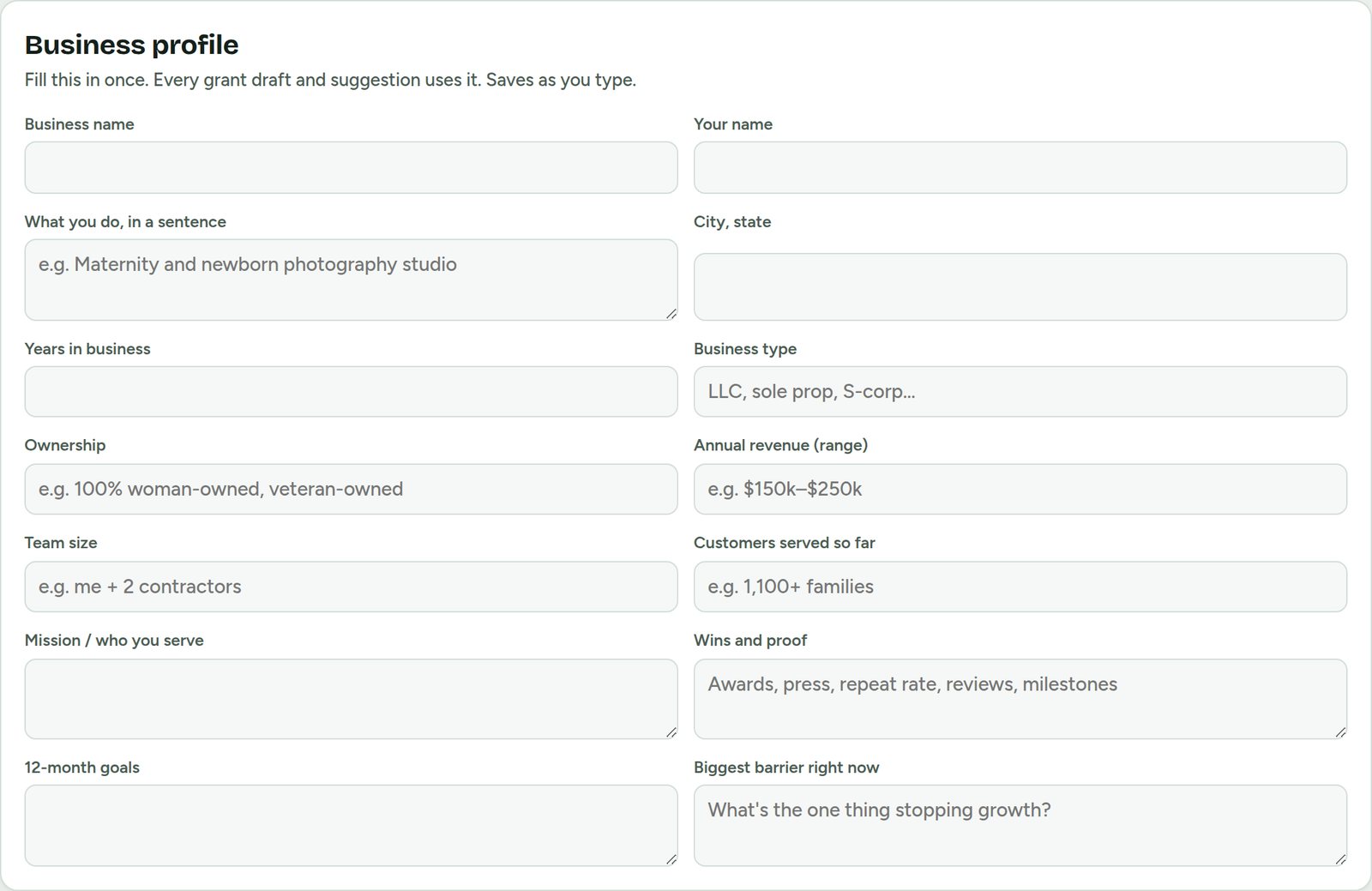
- Your story. Fill in your business basics once. Every answer uses them.
- Answer questions. Tap a common question or paste your own. The coach asks you a few plain questions, one at a time, then tap Write my answer.
- Submit. Copy each answer into the application, tick the final checklist, and mark it submitted.
Fine-tune any answer
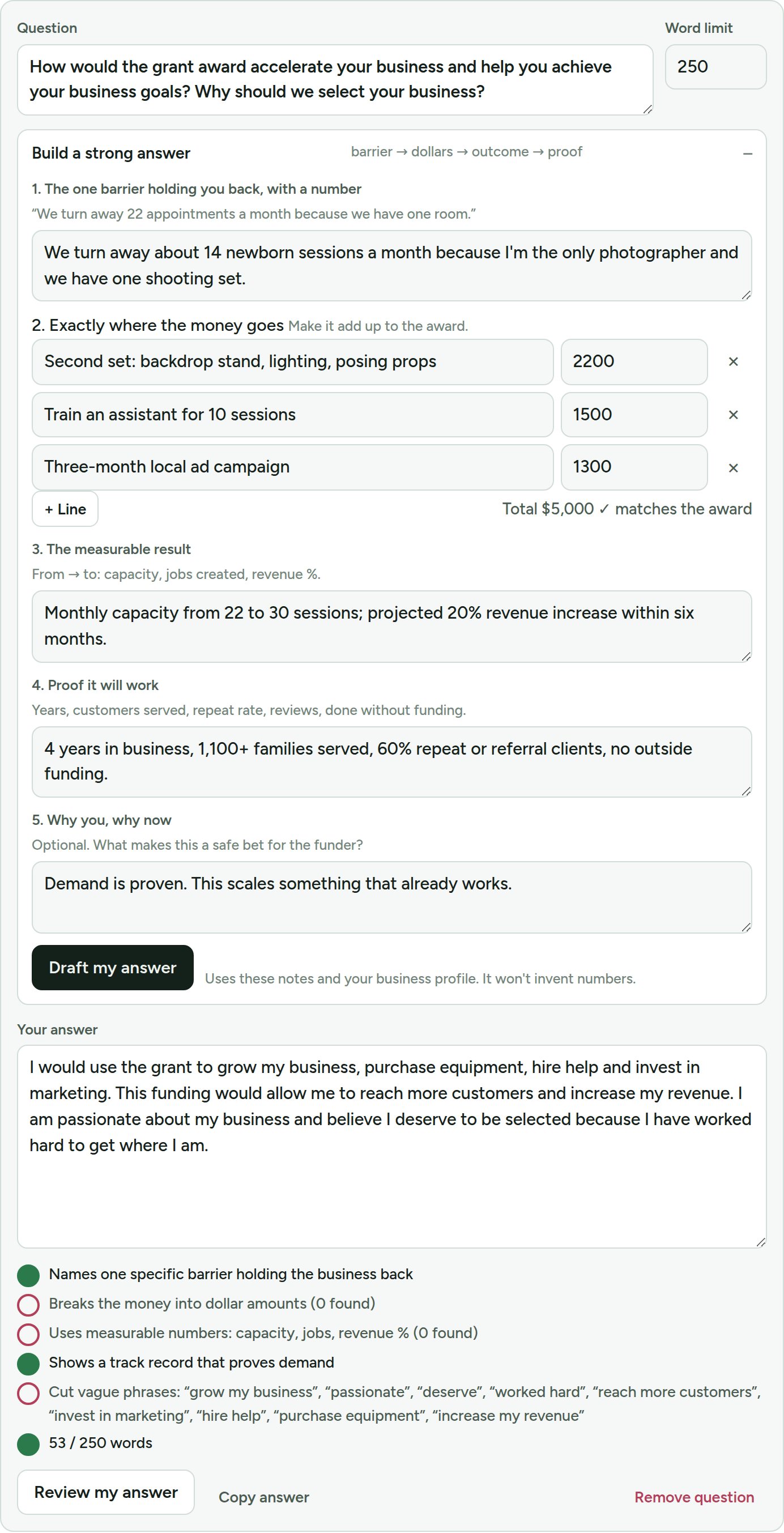
Under My grants, pick a grant, tap + Add question, and paste the question from the application.
- Open Build a strong answer and fill in the five parts:
1. the one barrier holding you back, with a number
2. exactly where the money goes (it checks that it adds up to the award)
3. the measurable result
4. proof it will work
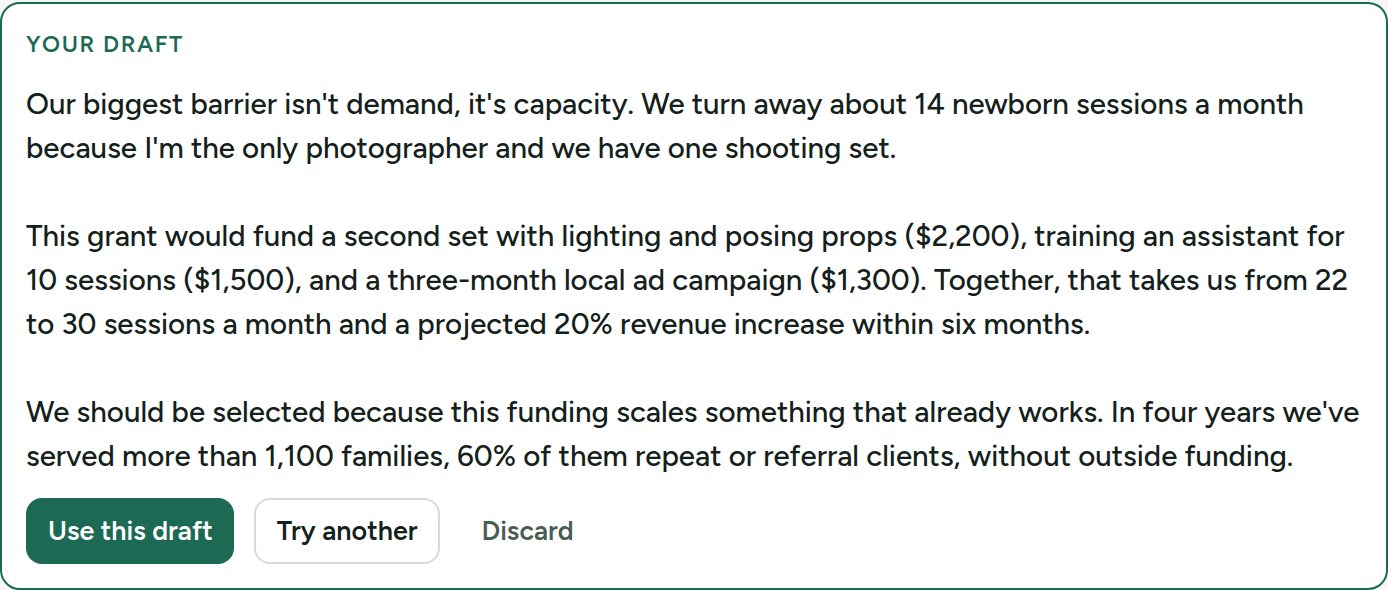
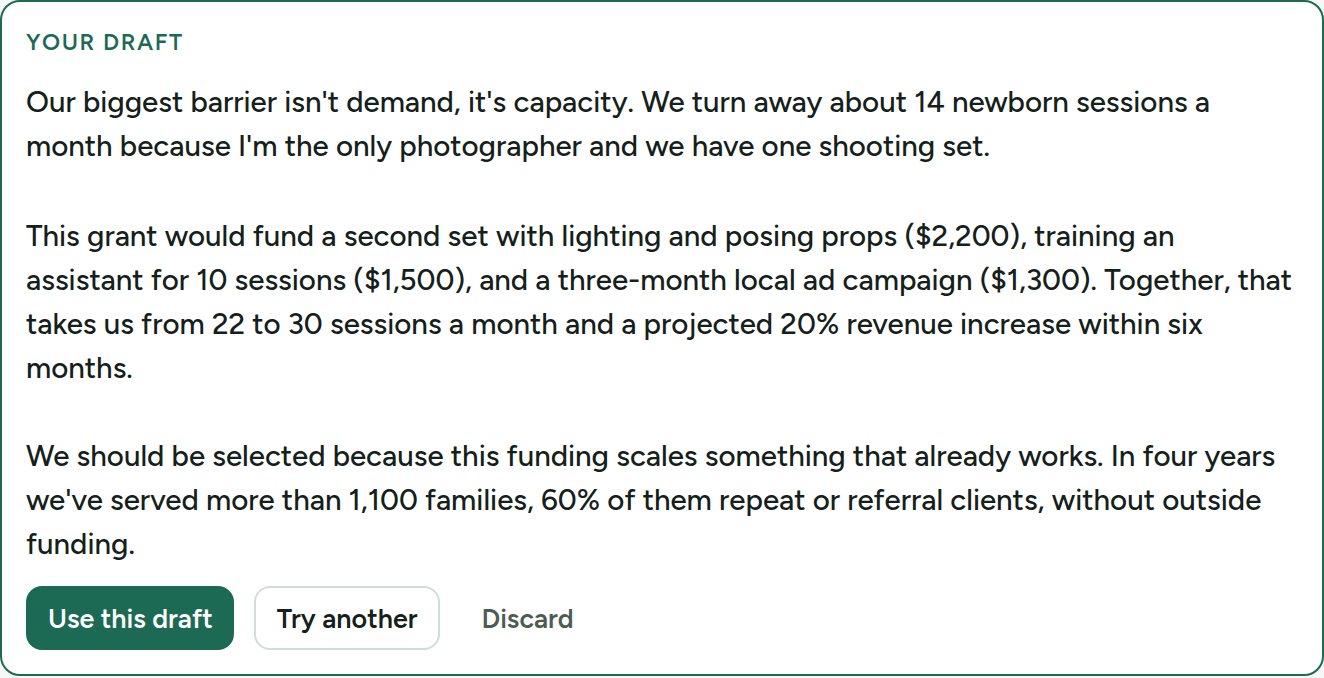
5. why you, why now - Tap Draft my answer. You get a draft built only from your real numbers. Anything missing shows up in [brackets] for you to fill in.
- Tap Use this draft, then edit it in your own words.
- Watch the checklist under your answer. Green means covered, red means fix it. Tap Review my answer for a score and specific fixes.
- Tap Copy answer and paste it into the application. Then change the status to Submitted.
More grants
Under Grants → More grants:
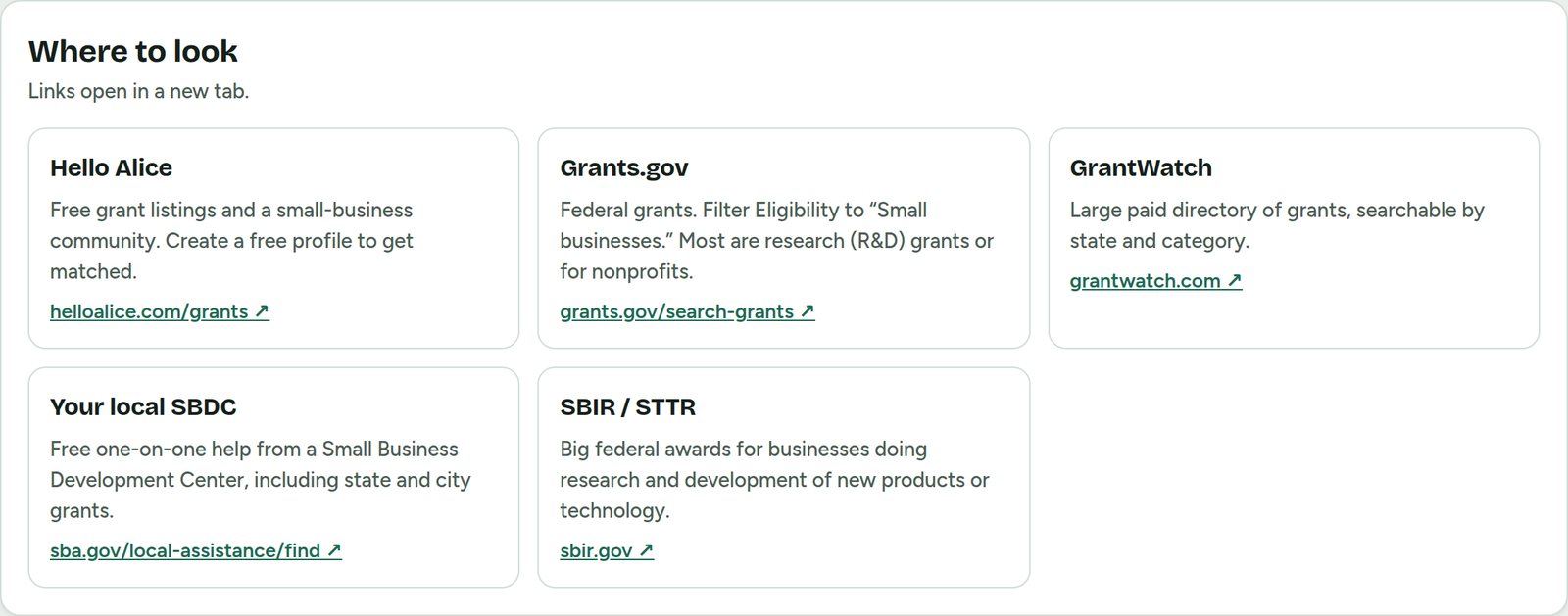
- Where to look: trusted grant sites and free local help.
- Federal grants for small businesses: open opportunities from Grants.gov, updated every morning. Search them and tap + Track.
- More grants to apply for: 28 programs you can filter by women & minority-owned, any small business, photographers, artists, and career & 50+.
- Ideas matched to your business: suggestions based on your Business profile. Treat each one as a lead and check it on the funder's site.
Ready to map your money?
One payment, lifetime access. Questions? staff@anabrandt.com